

External datasets#
We can also load datasets into Gaia Sky at run time. Right now, the VOTable, CSV and FITS formats are supported. Gaia Sky needs some metadata in the form of UCDs or column names in order to parse the dataset columns correctly.
Docs
See the STIL data loader section of the Gaia Sky user manual for more information on how to prepare your datasets for Gaia Sky.
The datasets loaded in Gaia Sky at a certain moment can be found in the datasets pane of the control panel. Open it by clicking on the  button or by pressing D.

Datasets pane of Gaia Sky.#
There are four main ways to load new datasets into Gaia Sky:
Directly from the UI, using the
 button (anchored to the bottom-left) or pressing Ctrl + O.
Through SAMP, via a connection to another astronomy software package such as Topcat or Aladin.
Via a script, using one of the dataset loading API calls.
Creating a dataset in the Gaia Sky format so that it appears in the dataset manager (see here.
Docs
See the data format section for information on how to create a Gaia Sky dataset (advanced!).
Loading a dataset from the UI – Go ahead and remove the current star catalog by clicking on the  icon in the datasets pane. Now, download a raw Hipparcos dataset VOTable, click on the icon (or press Ctrl + O) and select the file. In the next dialog just click Ok to start loading the catalog. In a few moments the Hipparcos new reduction dataset should be loaded into Gaia Sky.
Loading a dataset via SAMP – This section presupposes that Topcat is installed on the machine and that the user knows how to use it to connect to the VO to get some data. The following video demonstrates how to do this (Odysee mirror, YouTube mirror):
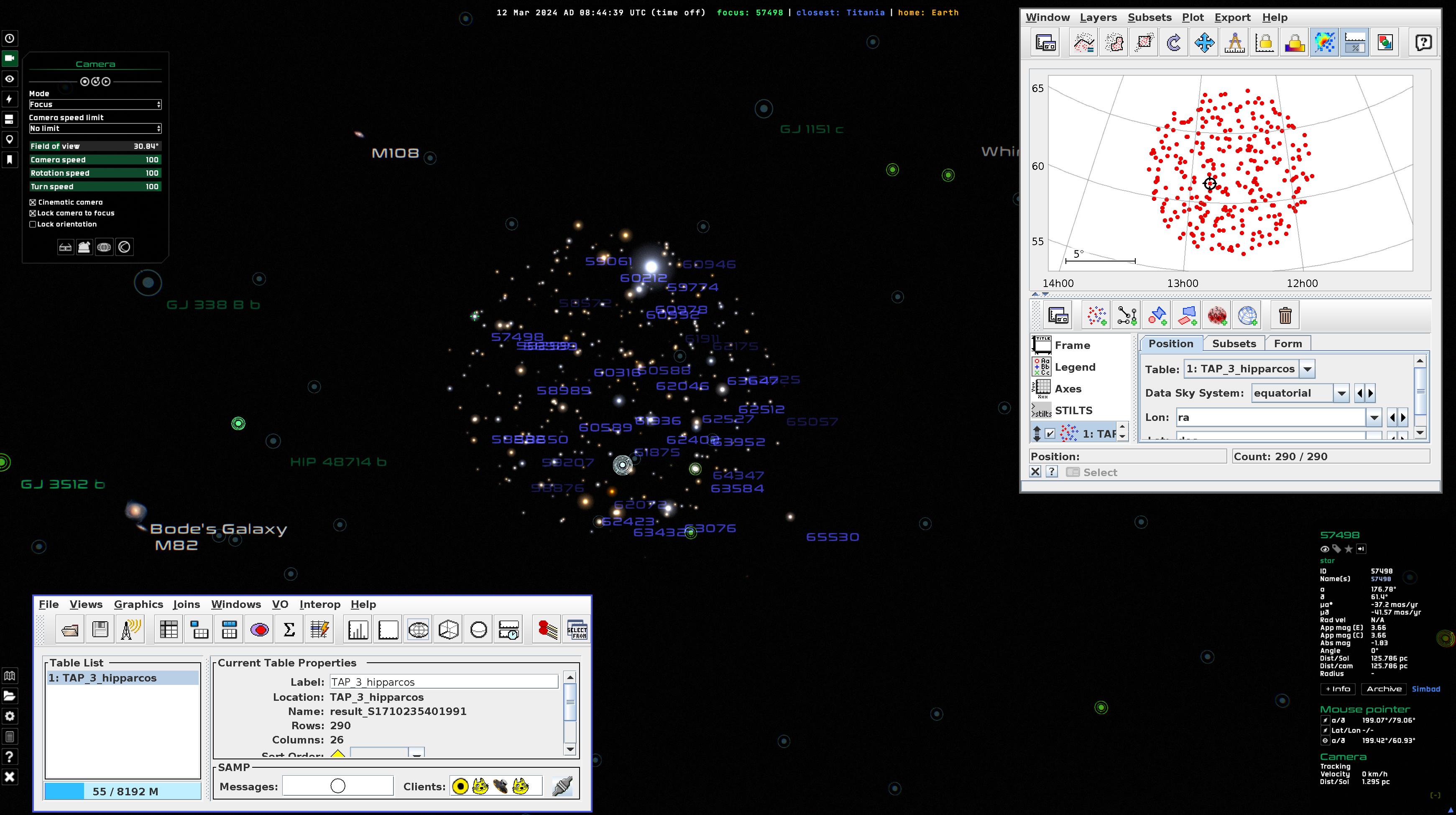
Loading a dataset from Topcat through SAMP (click for video)#
Loading a dataset via scripting – Wait for the scripting section of this course.
Preparing a descriptor file – Not addressed in this tutorial. See the catalog formats section for more information.
Working with datasets#
Tip
Expand and collapse the datasets pane by clicking on the hard disk button or with D.
All datasets loaded are displayed in the datasets pane in the control panel. A few useful tips for working with datasets:
The visibility of individual datasets can be switched on and off by clicking on the
 button
Remove datasets with the
buttonWe can highlight a dataset by clicking on the
 button. The highlight color is defined by the color selector right on top of it. Additionally, we can map an attribute to the highlight color using a color map. Let’s try it out:
Click on the color box in the Hipparcos dataset we have just loaded from Topcat via SAMP
Select the radio button “Color map”
Select the rainbow color map
Choose the attribute. In this case, we will use the number of transits, ntr
Click Ok
Click on the highlight dataset
icon to apply the color map
We can define basic filters on the objects of the dataset using their attributes from the dataset preferences window
 . For example, we can filter out all stars with \(\delta > 50^{\circ}\):
Click on the dataset preferences button
Click on Add filter
Select your attribute (declination \(\delta\))
Select your comparator (\(<\))
Enter your value, in this case 50
Click Ok
The stars with a declination greater than 50 degrees should be filtered out
Multiple filters can be combined with the AND and OR operators