Bounding shapes#
You can add shapes around any focus-able object. To do so, right click on the object you want to add the shape around and a context menu like the following pops up:
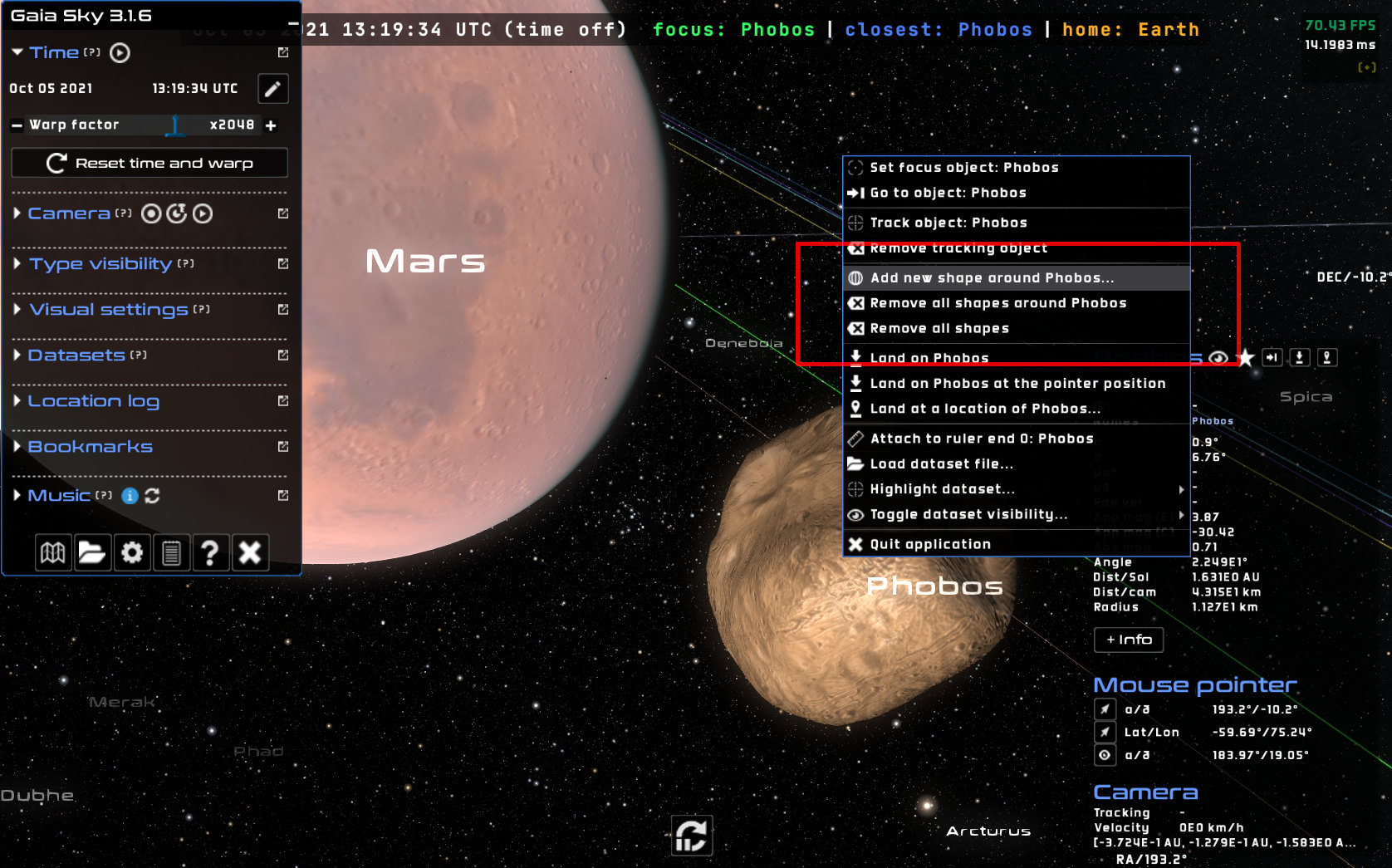
Add bounding shape, context menu#
Adding bounding shapes#
If you select Add shape around ‘object’…, the following dialog shows up:
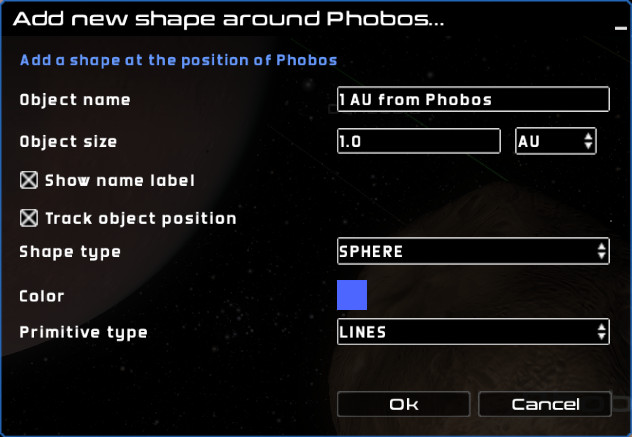
Add bounding shape dialog#
When adding a shape around an object there are a few properties that we can choose:
Object name – The name of the object. This will show up as the object label if ‘Show name label’ is checked.
Object size – The size of the object, together with the units of the size.
Show name label – Whether to show the label for the bounding shape or not.
Track object position – When checked, the bounding shape will follow the object around if/when it moves. Otherwise, the shape will stay at the original position.
Shape type – The shape type. Possible shapes are sphere, icosphere, octahedron sphere, cone, cylinder and ring.
Color – The color of the shape.
Primitive type* – The primitive to use for rendering. If **LINES, the shape is shown as a wireframe. If TRIANGLES, the shape is rendered as a solid object.
Orientation – The orientation of the shape. Can be one of:
Camera – Use the current camera direction and up vectors to configure the orientation matrix of the shape.
Equatorial system – Use the equatorial system.
Ecliptic system – Use the ecliptic system.
Galactic system – Use the galactic system.
Removing shape objects#
You can remove shape object using the context menu. You can either only remove the shape objects linked to a particular object with Remove all shapes around Object, or remove all the shapes with Remove all shapes.