

Getting datasets#
Installation packages do not contain any datasets, but Gaia Sky needs datasets to display planets, stars, and other objects. The welcome screen provides a few options to download and install datasets.
Welcome screen#
When you launch Gaia Sky for the first time, you are greeted with the following onboarding screen:
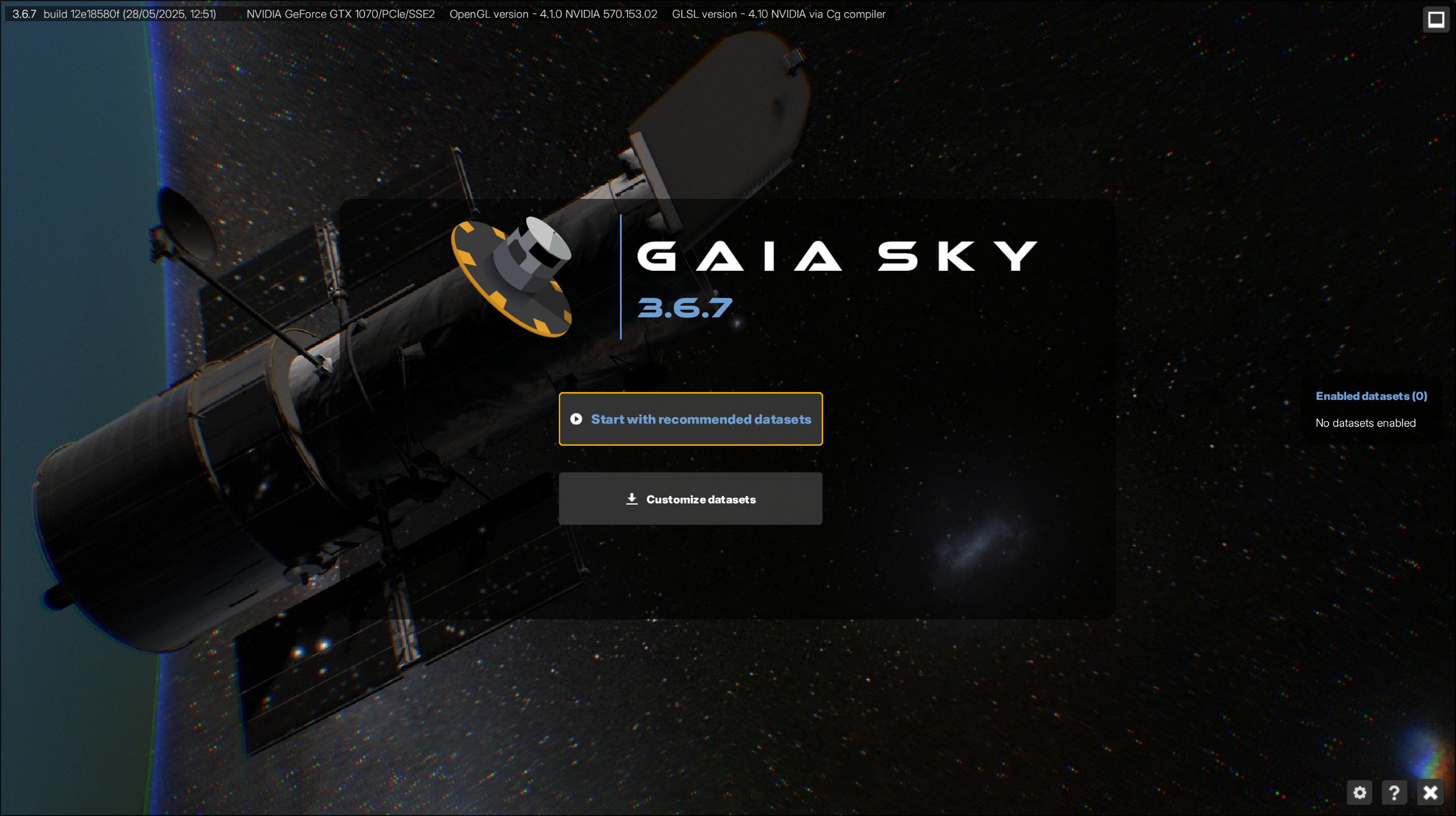
The onboarding screen offers a choice between a quick-start recommended setup or a fully customized experience.#
From this window, you can access global Preferences ( ), the Help window (
 ), or Exit the program (
 ) using the icons in the bottom-right corner.
There are two primary ways to begin:
 Start with recommended datasets — Automatically downloads a curated selection of essential datasets and launches Gaia Sky immediately.
 Customize datasets — Opens the dataset manager, where you choose which datasets to download and enable.
If you choose the recommended option, a progress window will appear. Once the download is complete, Gaia Sky will launch automatically.
If you choose to customize your setup, you will see the following view:
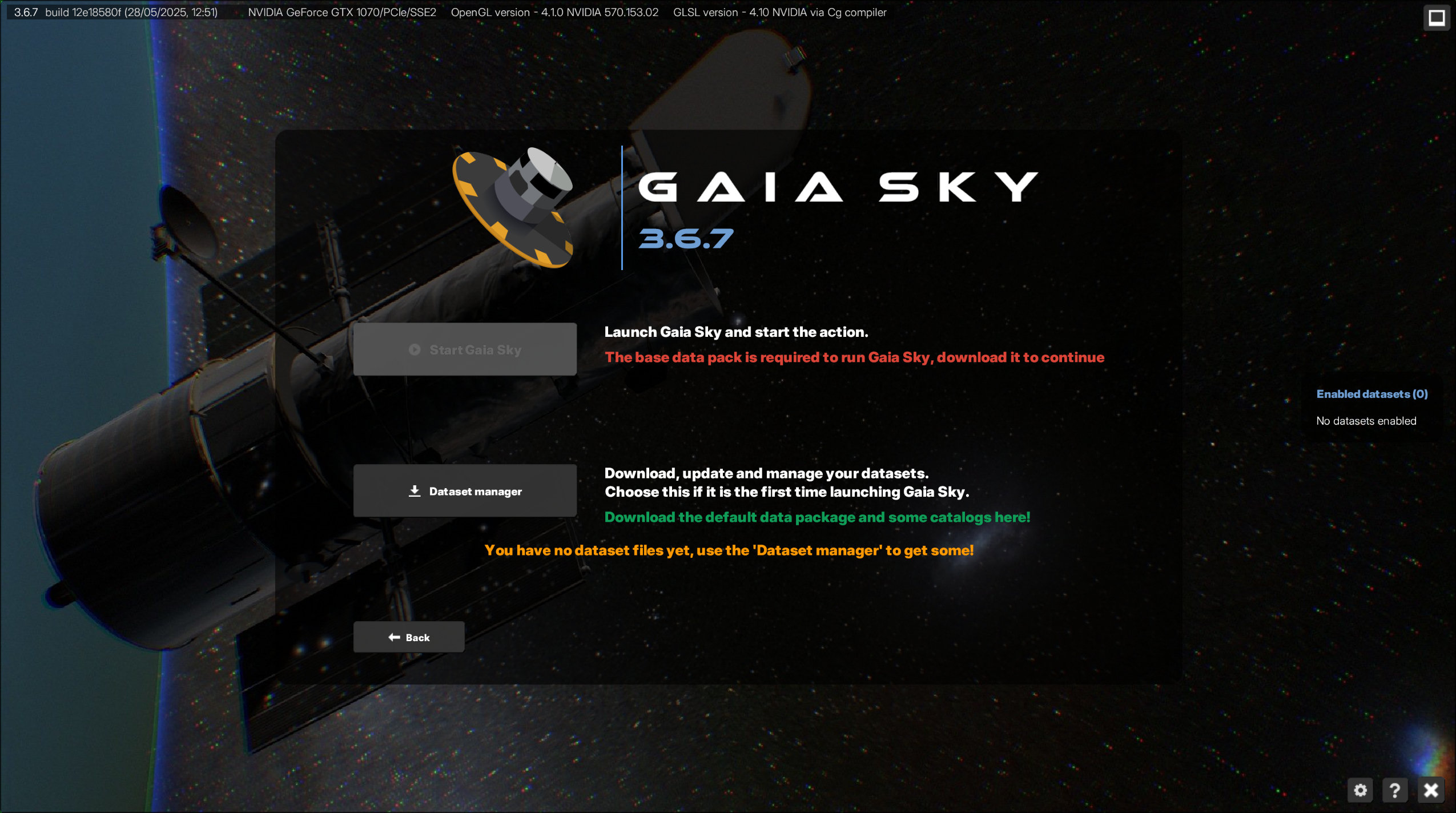
The welcome screen displayed when no local datasets are detected.#
From here, you can return to the previous screen by clicking Back, or click Dataset manager to begin your manual dataset selection. This process is covered in detail in the next section.
When at least one dataset is installed, the welcome screen looks like this:

The welcome screen when at least one dataset is installed.#
Dataset manager#
From the welcome screen, you can start Gaia Sky or launch the Dataset manager, which lets you download, enable and disable datasets. Enabled datasets are loaded when Gaia Sky starts up. All downloads from the dataset server are performed over a secure, encrypted HTTPS connection, and data consistency is checked using SHA256 checksums once the download has finished. The dataset manager displays two tabs at the top (Available for download and Installed), and a button to change the default data directory, at the bottom.
Data location#
All datasets are installed in the data location. Check out the directories section for the defaults. The install location can be changed by clicking on the button next to Data location, at the bottom of the window. When changing the data location, no data files are actually moved. If you want to migrate your data files to a different location, you must first do so by hand, and then point Gaia Sky to the new directory.
Note
The chosen directory must be readable and writable, or Gaia Sky will show a warning and refuse to install datasets there.
Available datasets#

The available datasets view in the dataset manager.#
At the top of the window you can choose to view the datasets available for download (using the Available for download tab) or the installed datasets (using the Installed tab).
Each of these two views consists of a two-pane layout. The left pane displays a list of the installed or available datasets with some basic information for each. Once you click on one of these datasets, the right pane displays extensive information about the dataset and its files.
The Available for download tab lists all server datasets that can be downloaded and installed locally. In order to display a dataset in Gaia Sky, it must first be installed locally. To install a dataset, use the install button  or right-click on the dataset entry in the left pane and select Install in the context menu.
Multiple datasets can be downloaded at the same time without problems. The download process can be canceled at any time by clicking on the Cancel download button in the right pane. Canceled downloads can be resumed any time without losing progress, as the .part files are kept in the file system.
Note
If you close the dataset manager while downloads are running, you are asked to confirm, listing the current downloads. Closing the window cancels them.
Updates#
The dataset manager also checks the versions of your installed datasets against the versions available on the server.
If any installed dataset has a newer version available, the tab is labelled Installed (N updates), the window title shows the number of updates, and the entry in the left pane is flagged as Outdated dataset!.
For an outdated dataset, the install button in the right pane reads Update instead of Install.
In the right pane you can compare the local version with the server version, read the release notes, and see if a newer dataset replaces the one you have installed.
Some datasets are tied to a particular Gaia Sky version. If a dataset was built for a different version of Gaia Sky than the one you are running, the right pane shows a compatibility warning, and the dataset may be disabled automatically. In that case, update Gaia Sky or download a version of the dataset that matches your installation.
Installed datasets#
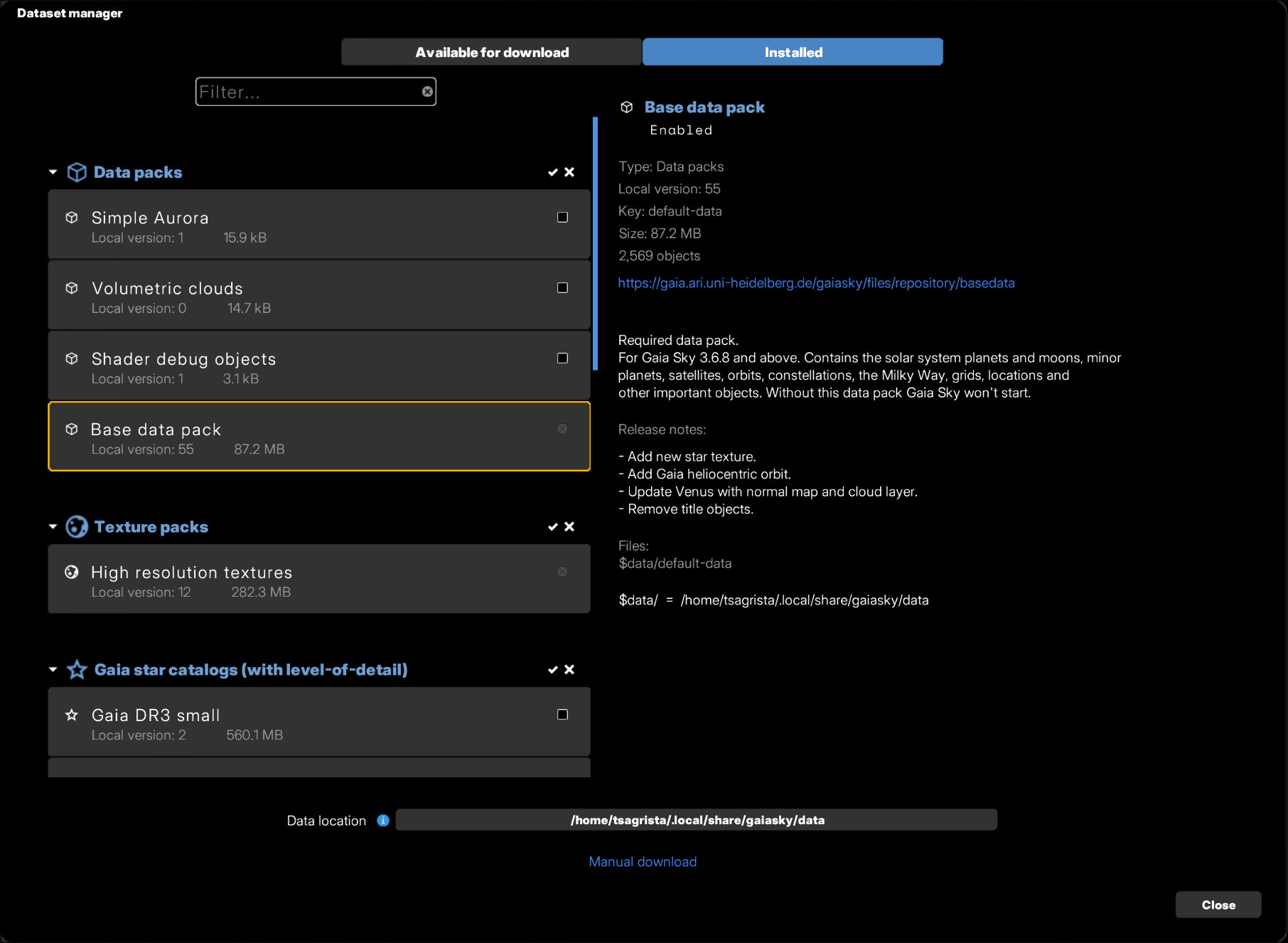
The installed datasets view in the dataset manager.#
The installed datasets view shows the datasets found in the currently selected data directory. From this view, you can enable and disable datasets by either using the checkbox next to the dataset name, or by right-clicking and selecting Enable or Disable in the context menu. Only datasets that are enabled are loaded into Gaia Sky.
Some datasets are always enabled. This is the case for all texture packs (whose usage depends on the graphics quality setting) and for the base data pack.
Warning
Removing a dataset deletes all of its files on disk. To remove one, right-click on the dataset entry in the datasets list (left pane) and select  Remove, then confirm in the dialog that appears.
Enabling incompatible datasets#
Some combinations of datasets cannot be loaded together: more than one level-of-detail star catalog, more than one cluster catalog, or more than one SDSS release, for example. This can result in repeated stars or clusters and in naming conflicts. Gaia Sky warns you about these combinations before applying the selection.
Other ways to get datasets#
Preferences window — the Data tab of the Preferences window has a Dataset manager button, which opens the same window. Note that newly enabled or newly downloaded datasets are only available after restarting Gaia Sky.
Manual download — datasets can be downloaded from the Gaia Sky dataset repository and installed by copying them to your data location.
Loading datasets at runtime — the dataset loader lets you load a dataset from file (.vot, .csv, etc.) or pick one of the installed datasets, without adding it permanently to the configuration.
Troubleshooting#
The following messages can appear in the download area of the dataset manager:
HTTP Error (status code N) — the server rejected the request. This is usually temporary; try again later.
No checksum found for dataset — the dataset has no
SHA256checksum published, so its contents cannot be verified.SHA256 check failed / Error checking SHA256 — the downloaded file does not match the expected checksum, or the checksum could not be computed. Delete the partial download and try again.
Error decompressing / Error extracting data — the downloaded archive is corrupt or was truncated. Cancel the download, delete the
.partfiles, and retry.Not enough free space on disk — free up space in the data location and try again.
You don’t have read and/or write permissions in the chosen directory — pick a different data location.
Can’t connect to data server! — the dataset server is unreachable. If your base data pack is already installed, Gaia Sky will offer to continue in offline mode; otherwise, download the base data pack manually from the repository above.