Stereoscopic (3D) mode#
Gaia Sky includes a real-time stereoscopic rendering mode that generates two separate images–one for each eye–creating the illusion of depth. This mode can be activated at any time and works with various 3D viewing technologies.
Hint
 or Ctrl + S – Toggle stereoscopic mode on/off
Ctrl + Shift + S – Cycle through 3D profiles
You can also access 3D settings via
When enabled, Gaia Sky renders the scene from two slightly offset camera positions simulating the left and right eye views. The resulting image pair is arranged according to the selected stereoscopic profile.
The stereoscopic mode settings are configured from the stereoscopic settings tab in the preferences window.
Basic viewing methods#
Hardware-Assisted Viewing:
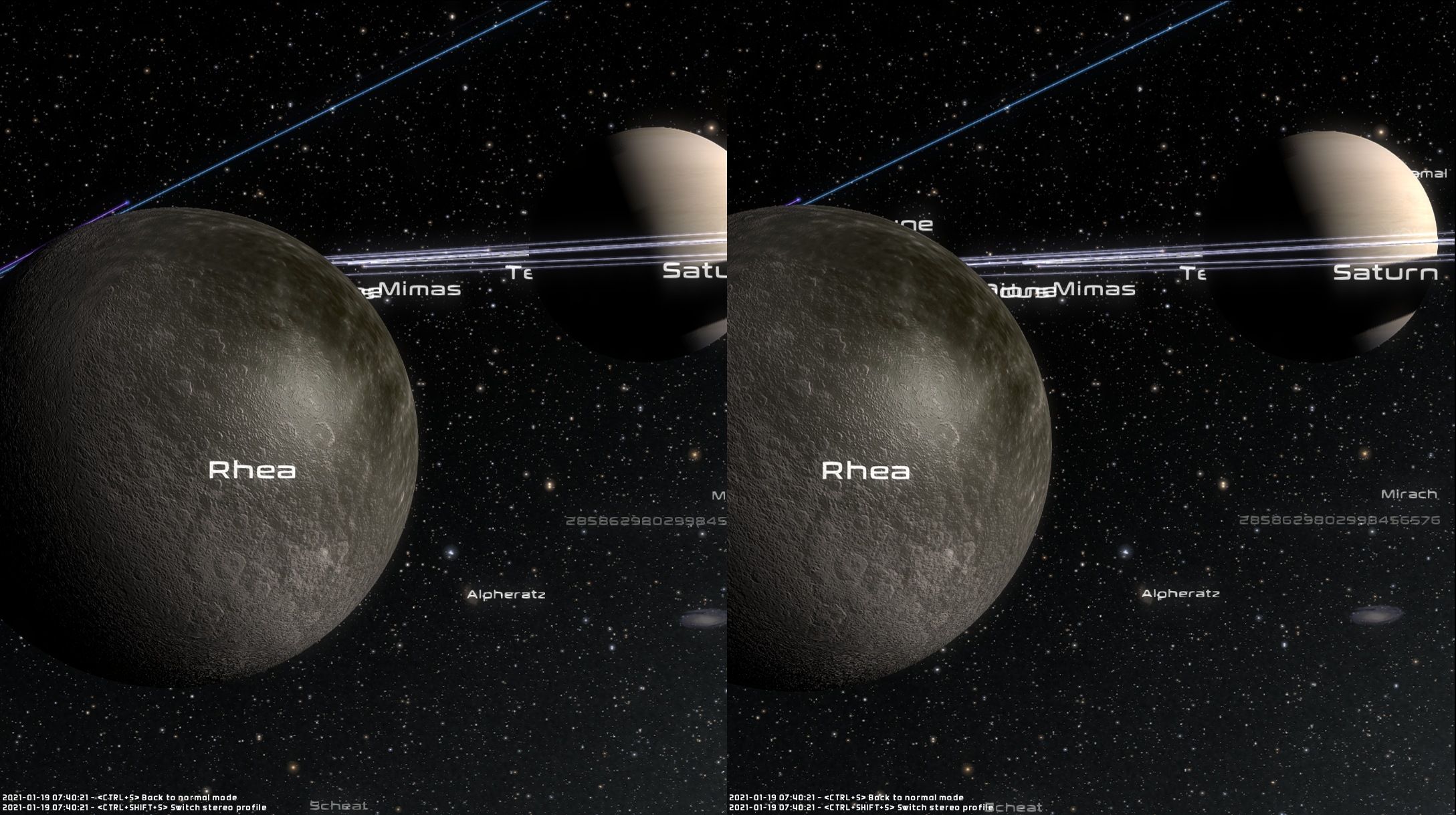
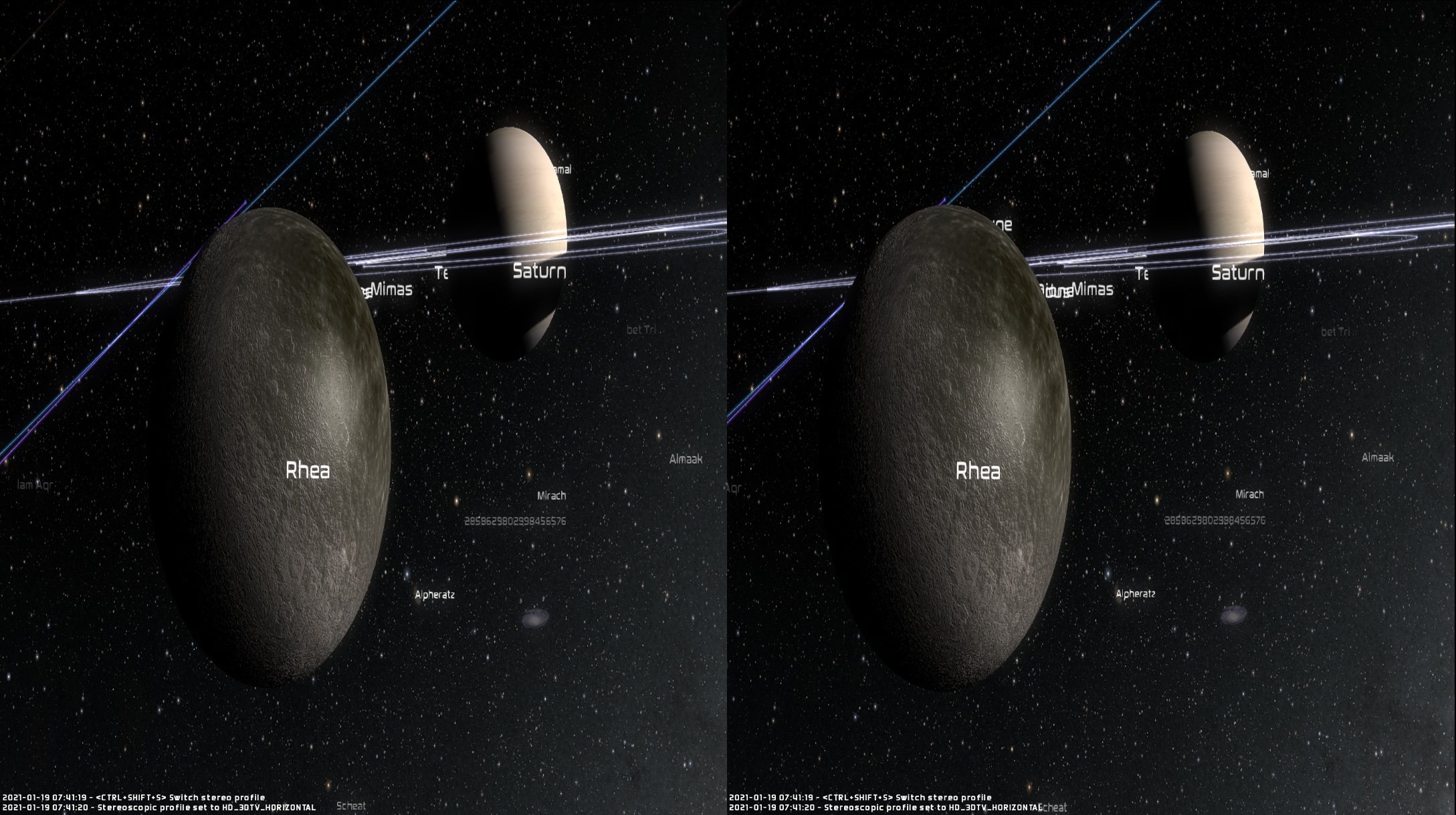
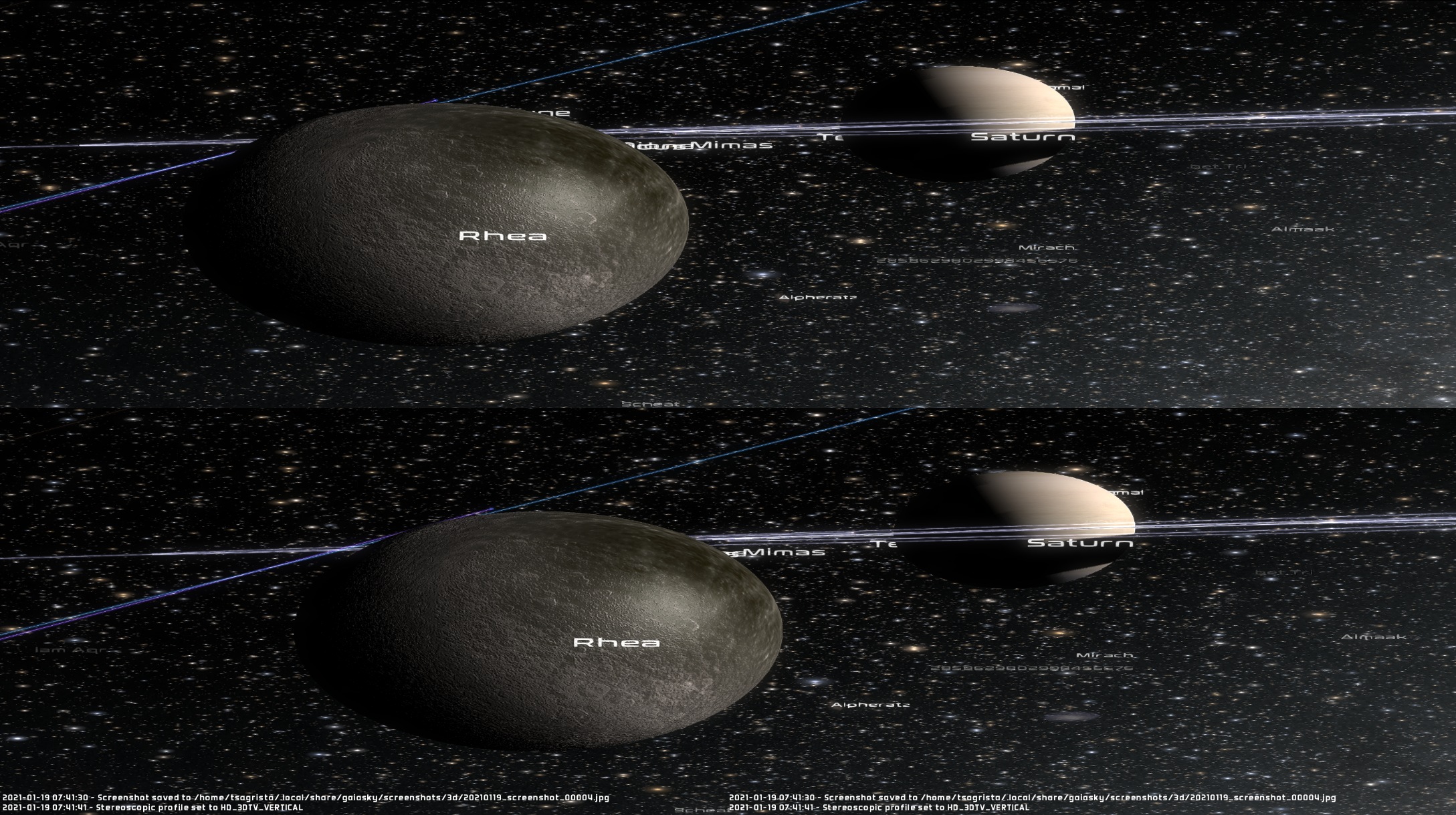
3D TVs & Monitors – Uses side-by-side or top-bottom formats that compatible displays can convert to 3D.
Anaglyph – Works with tinted glasses that filter light differently for each eye.
Free-Viewing (No Special Equipment):
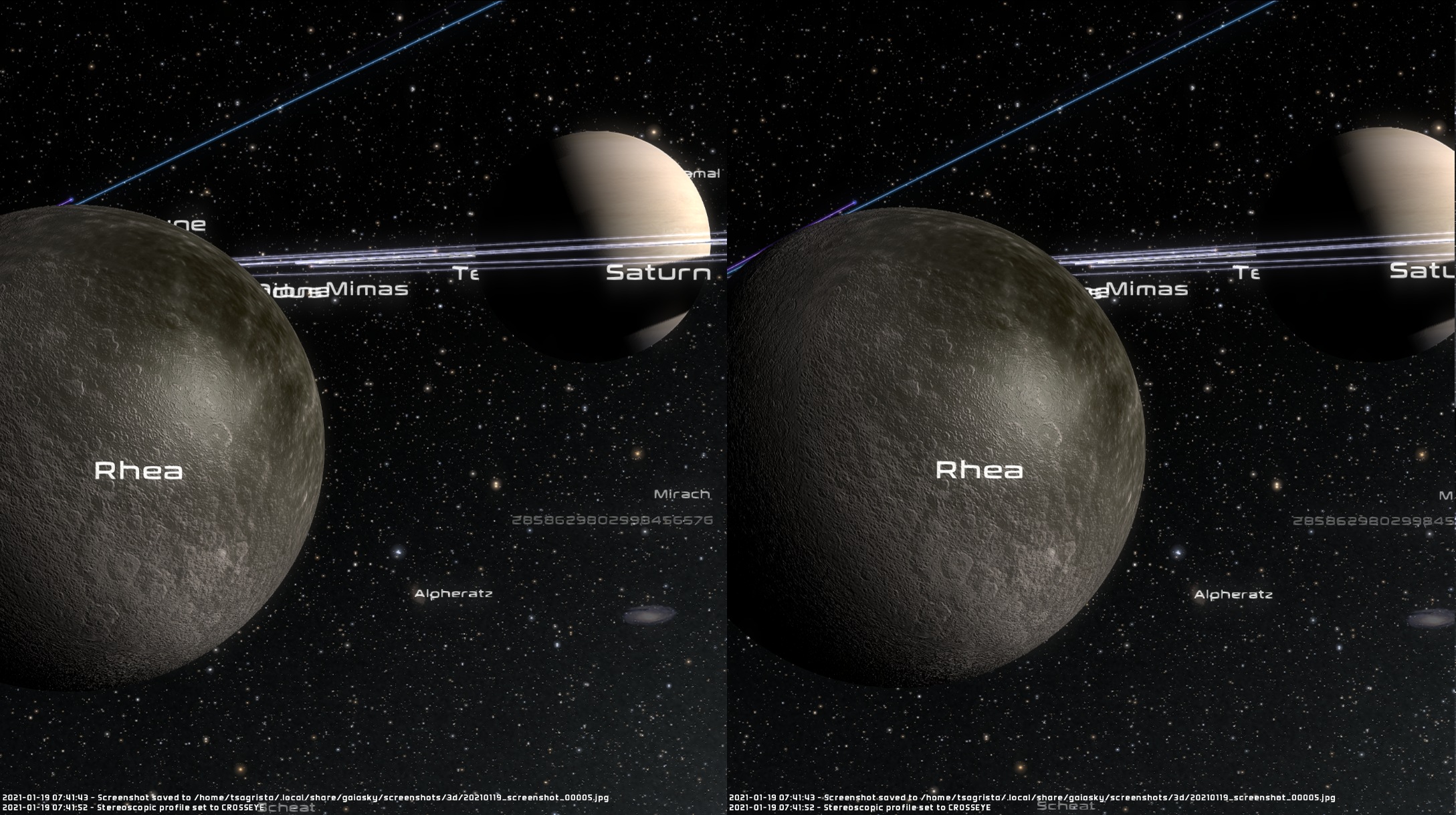
Cross-Eye 3D – Right image shown to left eye, left image shown to right eye.
Parallel View – Standard arrangement (right→right eye, left→left eye).
Note
Free-viewing techniques require practice. For best results:
Cross-eye: Focus behind the screen as if looking at a distant object
Parallel view: Focus in front of the screen, letting your eyes diverge
Stereoscopic profiles#
Gaia Sky provides six stereoscopic profiles optimized for different viewing methods. Each profile handles image separation, arrangement, and processing appropriately.
Profile details#
Profile |
Image Arrangement |
Primary Use |
|---|---|---|
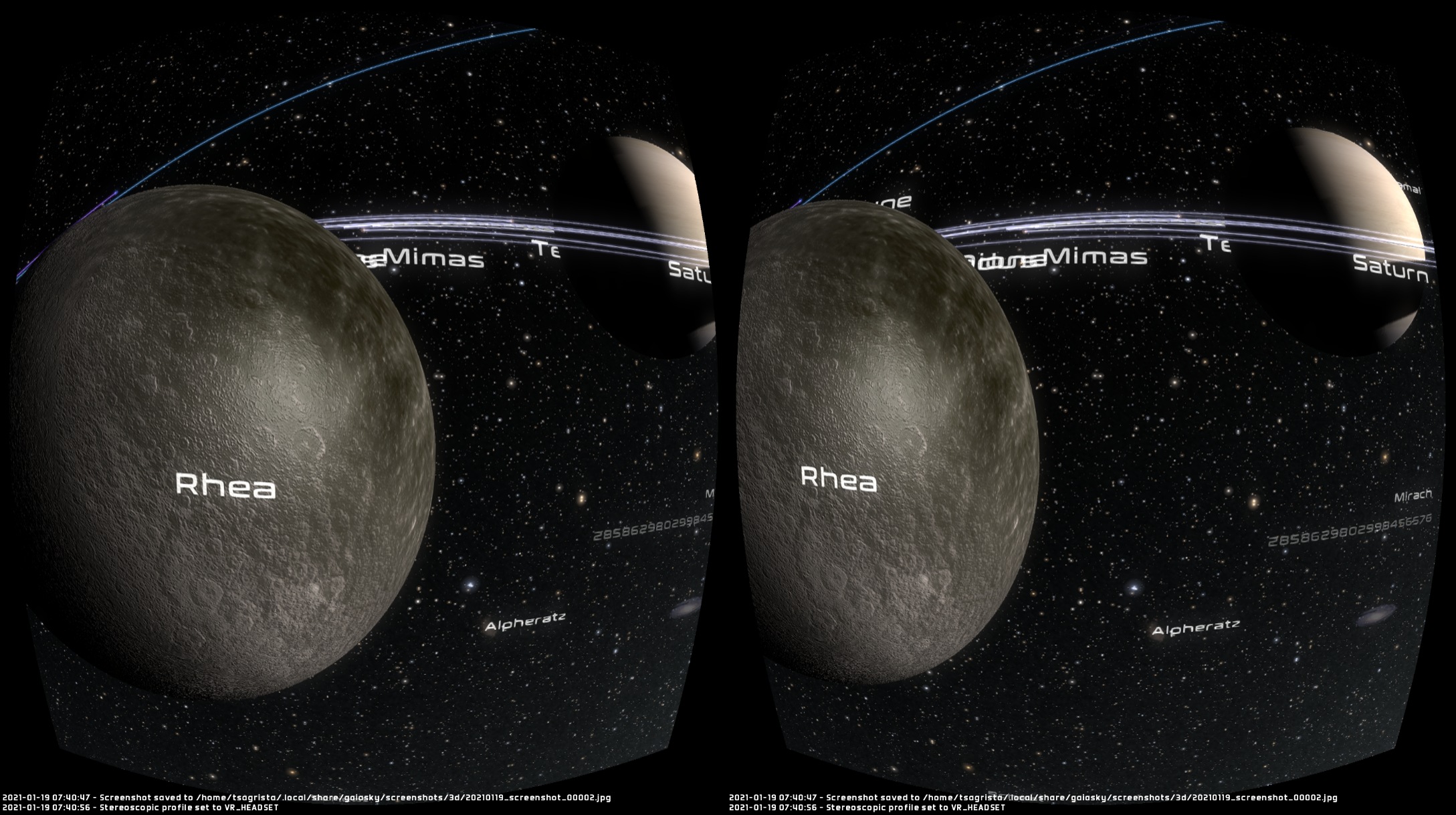
VR Headset |
Side-by-side Left→Left |
Basic VR viewers (lens distortion applied) |
Cross-Eye |
Side-by-side Left→Right* |
Free-viewing (cross-eye technique) |
Parallel View |
Side-by-side Left→Left |
Free-viewing (parallel technique) |
3DTV Horizontal |
Side-by-side Left→Left |
3D TVs in side-by-side mode (images stretched vertically) |
3DTV Vertical |
Top-bottom Top→Left |
3D TVs in top-bottom mode (images stretched horizontally) |
Anaglyph |
Color overlay |
Red/cyan or other color-filter glasses |
* In cross-eye mode, the left image is intended for the right eye and vice versa.
Anaglyph profiles#
We offer various anaglyph profiles, suited for different color-filter glasses:
Red/Cyan – Standard red/cyan anaglyph with gamma-per-channel enhancement
Red/Cyan Dubois-style – Red/cyan with Dubois-style filtering to reduce ghosting and shimmering
Amber/Blue – Standard amber/blue anaglyph
Amber/Blue Dubois-style – Amber/blue with Dubois-style filtering
Green/Magenta – Standard green/magenta anaglyph
Green/Magenta Dubois-style – Green/magenta with Dubois-style filtering
Red/Blue – Classic red/blue anaglyph
Custom – Choose your own anaglyph colors from the preferences dialog.
Hint
The VR Headset profile applies barrel distortion to counteract pincushion distortion in VR lenses. This works for basic Cardboard-style viewers but is not equivalent to full VR mode.
Profile |
Preview |
|---|---|
VR Headset |
|
Cross-Eye |
|
Parallel View |
|
3DTV Horizontal |
|
3DTV Vertical |
|
Anaglyph red/cyan |
|

Stereoscopic mode vs full VR#
Important
Stereoscopic Mode and Full VR Mode are different features in Gaia Sky:
Feature |
Stereoscopic Mode |
Full VR Mode |
|---|---|---|
Activation |
Toggle anytime in main app |
Special VR launcher required |
Technology |
Standard rendering |
OpenXR runtime |
Tracking |
Mouse/keyboard/gamepad |
6DOF head and controller tracking |
Input |
Standard Gaia Sky controls |
VR controller input |
Use Case |
3D visualization on screen |
Immersive VR experience |
For full VR with head tracking and motion controllers, you need to use the OpenXR VR mode. See the VR section for details on setting up and using Gaia Sky in full VR mode.
Troubleshooting#
Common Issues:
Double vision/eye strain – Reduce IPD value
Incorrect 3D effect – Ensure correct profile for your viewing method
3D TV not detecting signal – Check TV’s 3D mode matches Gaia Sky’s output format
Distorted image in VR viewer – Use VR Headset profile for basic viewers
Technical implementation#
The stereoscopic mode settings are available in the preferences dialog, stereoscopic settings.
We compute the eye separation with this formula:
with:
\(S_{eye}\) is the final eye separation, in internal units.
\(k\) is the global aesthetic scale factor (comfort multiplier). It is a user-adjustable coefficient that scales the entire calculated eye separation, compensating for the mismatch between the theoretical geometric model (based on human-scale IPD and screen distance) and the visually comfortable hyper-stereoscopy required for astronomical scales. Setting \(k < 1\) pulls the perceived 3D effect deeper behind the screen for user comfort and reduced eye strain. Unitless.
\(IPD\) is the interpupillary distance, in mm.
\(d_S\) is the screen distance, in mm.
\(d_B\) is the distance to the closest body (either the focus or otherwise), in internal units. Sets the zero-parallax plane at the closest object.
\(f_{FOV}\) is the field of view factor, computed as \(tan(fov \cdot 0.5) / tan(fov_{ref} \cdot 0.5)\). Unitless.
\(S_{max}\) is the maximum separation allowed, ~1.0e8 km, expressed in internal units.
The key geometric component is the FOV Factor (\(f_{FOV}\)), which uses the tangent function to ensure the calculated separation correctly correlates with the perspective projection onto the 2D screen plane.
\(IPD\) and \(d_S\), together with an effect scale factor, \(k\), are user-adjustable. Refer to the stereoscopic mode configuration section for more information.
Low-Pass filter (smoothing)#
To prevent visual artifacts and user discomfort (dizziness) when \(d_B\) or \(fov\) changes rapidly, the final \(S_{eye}\) is fed into a single-pole low-pass filter (LPF) function:
\(S_{calc}(t)\) is the actual separation used for rendering.
\(\alpha\) (alpha) is the smoothing factor (\(\alpha \in [0, 1]\)), which controls the filter’s response time. A small \(\alpha\) (e.g., 0.05 to 0.10) ensures the transition is smooth and imperceptible to the user.